In the left hand side menu under Registrations select Exports and then Participants.
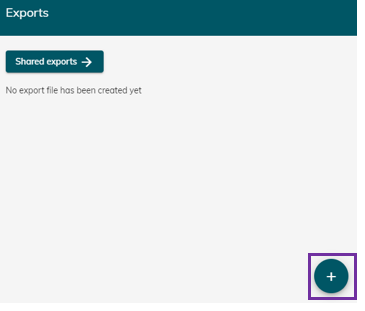
To create a new report click the plus icon in the bottom left hand corner:
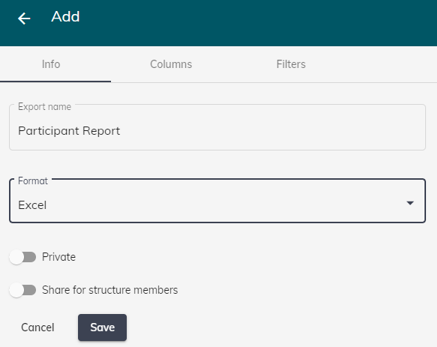
Under Info add your report name and choose the format you want to download your report in.
Under Columns click the plus icon to add your report columns/headings. After you have added all the columns you want to appear in your report click save in the bottom right hand corner.
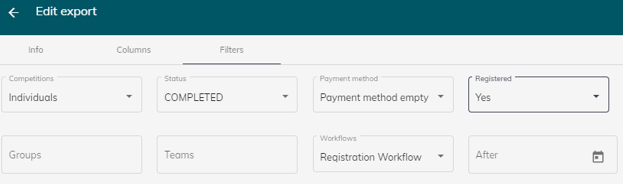
Under Filters select what data you want to view in your report.
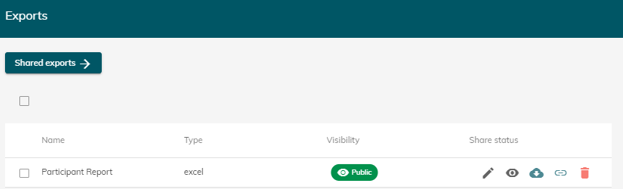
Under Exports you will see the report you have created.
- Click the pencil icon to make edits
- Click the eye icon to switch your report from being public to private
- Click the cloud icon to download your report
- Click the link icon to share your report with others
- Click the bin icon to delete your report